
There are a lot of Instagram coaches who will tell you that you need fancy-schmancy video edits to be successful on the ‘gram.
I am not one of them.
For me, the quality of your messaging and your overall content strategy will always trump a flashy edit.
But what I DO care about is having a simple way to edit Instagram Reels that reduces friction and makes it easy to be consistent.
For ages, we had to go elsewhere for this – whether that was CapCut, InShot, or Descript. Instagram’s native edit functions were CLUNKY as heck.
But alas, not anymore, friends!
Because now they’ve introduced the Instagram Edits app. (Also known as Edits by Instagram).
And I’m not even exaggerating, it’s completely shifted my entire content creation workflow for the better.
It’s a LOT more powerful than people think.
So in today’s post, I want to give you the full lowdown on the Instagram Edits app – why you should be using it as a small business owner, HOW to use it, and some of my all-time favourite tricks and features. I’ll even throw in my best organization hacks for good measure.
Let’s get into it, shall we? 🙌🏼
What Is Instagram Edits?
Instagram Edits is essentially Instagram’s answer to CapCut. (The interface looks very similar).
While it is its own separate app (you have to download it from the App Store), it’s still a part of the Instagram ecosystem.
That means you can publish/schedule directly from the Edits app, access saved posts and audios, and, of course, film and edit directly inside the app.
The beauty of the Instagram Edits app is SIMPLICITY. You no longer need to keep track of a ton of different apps and export and upload between them. Everything is housed in one place.
As a small business owner, this is invaluable.
The less things you have to keep in that busy brain of yours, the better!
How to Use the Instagram Edits App
Pin this to your Marketing Board 👇🏼
Before we get into all the features and my favourite aspect of the Instagram Edits app, let’s start with a super quick tutorial on how to use it.
- Head to the App Store or Google Play for Android and search for Instagram Edits. You can download and log in with the email and password you use for your regular Instagram account.
- From there, you can start a new project. You have the ability to record straight from the app or add clips from your camera roll!
- Use the timeline to trim your videos, reorder them, and splice everything together.
- Then, you can add in your text overlays, sound effects, visuals, or anything else to jazz it up.
- One of the best things about working in Edits is that you’re able to save your Reel right to your camera roll. When you export and publish to Instagram, a copy lands in your photo library!
There’s a lot more detail I could add, but that’s the basic gist of it. I do have to say, as someone who considers myself not too techie, I find the Edits app incredibly user-friendly and easy to navigate.
So poke around, start working on a few projects, and I’m sure you’ll get the hang of it!
Now, for the fun stuff…💃
8 Of My Favourite Instagram Edits App Features For Easy Reels Editing
Pin this to your Marketing Board 👇🏼
These are the Edits features I use again and again to save time and HOOK my viewers.
Save caption styles
One of the most time-consuming parts of editing Instagram Reels used to be setting up your subtitles.
Finding the right font you like…
Hovering over the colour wheel to find juuuust the right shade that matches your branding…
It was tedious. But not anymore, thanks to the Edits saved captions feature. 💁🏼♀️
Now, you can set up your preferred caption styles ONCE and reuse them forever.
Here’s how to do it.
Next time you’re editing a Reel, add your text the way you’d like, and then hit “Save styles”.
That’s it! Now it’s saved as a preset style for your next Reel.
You could even have multiple styles saved if you like to rotate between a few different types of text.
Psssst. Want to learn more about how to sign clients from Instagram in just 15 minutes a day? My free interactive training breaks it all down. Watch it here.
Cut silences automatically
You know all those awkward little pauses that you have to manually edit out in talking head Reels? This feature lets you do that in just ONE CLICK.
You can say goodbye to tediously hovering your finger over the timeline and spending tons of time trimming footage.
Simply select the clip you want to edit and scroll to the very end of the features/effects, and you’ll find one called ‘cut silences’.
(Editing out the silences is one of the best ways to increase retention so that viewers stay HOOKED and keep watching – which essentially makes you besties with the Instagram Algorithm 👯♀️)
Add clickable links into videos
This is a fun one! Have you been seeing other creators who have links to Reels pop up on the screen during their Reel? (Meta, I know!)
This is the clickable links feature in Edits by Instagram. It allows you to embed links to different Reels or even Instagram profiles directly into your Reels.
Here are some ideas for how you could use this Instagram Edits app feature for your business:
- For a Reels series: If you’ve got a multi-part series (these are huge right now!) leave part 2 directly at the end of part 1 so they can go binge it right away instead of hunting.
- For a round-up post: For a service provider, this could be a great way to show off your best work. For example, if you’re a brand designer, you could do a “my favourite brands I designed this year” Reel and link each one to the specific Reel where you break down that project. Same idea if you’re a web designer or a wedding photographer – round up your top websites or client galleries in one Reel, with a link to go see each one in more detail!
- You can also try a “This or That” format. Ask a question, give people two options, and let them pick which Reel they want to watch next. See an example of one I did myself like that just below!
Zoom in on the Edits app
Have you ever noticed a little diamond when editing in the IG edits app? You can use it to add a Zoom hook – which is one of my go-to visual hooks for Instagram Reels.
Simply click on that diamond icon where you want the zoom to start. A white line will appear – drag it to where you want the Zoom to END. Then pinch in to your desired zoom, the same way you would on a photo.
It’s a little easier to see visually, so here’s a tutorial. 👇🏼
Add in Sound effects
Another great way to hook your viewers is to add a sound effect in the first 7 seconds of your Reel. You can also use them throughout your video to keep people engaged!
With the Edits app, you can access a library of common sound effects for Reels right there, so you’ll never need to go hunting for sound effects again.
Here’s how to do it.
Slide the white bar to where you want to place the sound effect.
Tap SoundFX.
From there, a library pops up filled with all of the comment sound effects like pop, whoosh, typing, and so many more.
Overlay one clip/image on another
Adding image and video overlays to Reels in Edits is WAY easier than you think!
It’s a 2-second thing that immediately makes your Reels more attention-grabbing.
I originally learned about this way back in my TV and film production days. In TV, there’s this saying that says, “say truck, see truck” – meaning if you mention something, you should show it.
If the anchor’s talking about a snowstorm, they don’t just sit there talking about the snowstorm. They cut to the footage of it. Because watching a talking head for 30 seconds straight gets kinda boring, but when you show people the thing you’re talking about it keeps people engaged and watching.
So next time you mention something in a Reel, show it. Just have your photo or video in your camera roll, tap Overlay, and pick it. Then you adjust it exactly like you would with a text overlay (pinch to shrink it, drag the yellow bars for however long you want it on screen, etc.)
Retention hacks like this are one of the best, easy ways to fix low engagement on Instagram.
Keep text inside safe zones
Have you ever been scrolling through Reels and had a hard time reading someone’s text because it was getting cut off?
There’s an easy fix for that in the Instagram Edits app.
When you drag your text around, you’ll notice these very faint lines pop up on the screen. Those are your safe zones. They’re super subtle, so you’ve gotta keep an eye out for them. But essentially, the trick is to keep all your text in basically the middle third of the screen, away from those edges.
Make a cutout of yourself to keep people engaged
I’m SURE you’ve seen people doing this one on Reels and thought, “WOAH – how can I do that?!”
It’s that effect where the text seems to appear behind them, or they walk in front of their words.
At first I thought it was some complicated, technical edit, but it’s actually pretty simple to do this in the Instagram Edits app using the cutout tool.
Essentially, when you hit “cutout” it pops you out from your background so you can layer yourself over your text, or move around it.
⚠️ A few things I learned the hard way, though. It’s a bit glitchy, especially if your phone’s on low battery. And the more cutouts you add, the harder your phone has to work and the bigger the file gets. So to save room, I recommend deleting your more complicated videos out of Edits once you’ve posted them. Complicated stuff like fingers or waving your arms around is gonna be trickier to cut out cleanly.
Most importantly: edit your whole video FIRST and save the cutouts for last. Otherwise, you’ll be tweaking them over and over every time you change something else.
My Best Instagram Edits App Organization Tips for an Easier Content Creation Process
It’s way easier to post every day when you’re not horrified by the state of your camera roll.
So here’s what you’re gonna do to tame the chaos.
Start filming your content directly inside the Edits app.
From now on, your Edits app is going to be the place that’s full of your drafts. As soon as you put something in Edits for storage, I want you to delete it from your camera roll.
Then, as soon as you post it, I want you to change the name of the draft to have a check mark at the beginning. Like this. 👇🏼
So now when you open Edits, you open up a BEAUTIFULLY organized content workspace.
You know exactly what’s still a draft and what has been posted.
Organizing B-Roll Footage In The Instagram Edits App
If you’ve been following me for a hot minute, you know I am the QUEEN of quick and easy b-roll Reels.
I share ALL of the b-roll Reel ideas over on my Instagram.
If you’ve been saving them and filming a bunch of shots, here’s what I recommend.
As soon as you film your b-roll, add those clips to Edits, label them ‘B-ROLL’ – and then delete them off of your camera roll to save space and keep everything tidy.
Also, as soon as you film it, trim it down to 7-8 seconds right then and there. And delete any other copies you have, they only take up extra space and clutter things.
I’m not a wildly organized person, but I ran a social media management agency for long enough to know that these things can get out of hand FAST!
Tiny, regular habits to clean things up and keep it all organized will always beat spending a whole day clearing out a full-blown digital dumpster fire.
And when you know where everything is, and it’s easy to access, you’re able to create content faster, too!
Frequently Asked Questions
What’s the difference between editing a Reel in the normal Instagram app vs. the Edits app?
Editing in the regular Instagram app offers a basic editing experience, but I find it can be glitchy, and it lacks a lot of the features that can take your Reels up a notch.
Edits app by Instagram offers you the full timeline view, better ways to organize and plan your content, more styles for captions, and so much more.
With the regular Instagram editing experience, a lot of the time drafts get lost or deleted too, whereas the Edits app is more reliable. You can also see all past projects in one convenient spot!
Will I get more reach or be favored by the algorithm if I use Edits vs. CapCut or Descript?
There’s been a myth floating around that if you edit in the Instagram Edits app, the algorithm will favour you and you’ll get more reach.
But Adam Mosseri, the head of Instagram, has confirmed that this isn’t true.
I suggest editing in the Edits app because it’s user-friendly and speeds up the editing process a ton, not because it’s some secret shortcut to more reach.
Is Edits by Instagram free?
Yes, Edits by Instagram is free! Hooray for one less business subscription on your credit card. 🥳
Before You Go…A Killer Edit Won’t Save a Weak Hook
I am all about helping you post consistently and frequently…ideally getting you up to 5-7 times a week (I blogged all about why I recommend this Instagram posting frequency here).
Edits by Instagram is an important piece of that puzzle because it removes friction and saves you massive amounts of time when editing Reels.
AND it can help you do some pretty nifty things and cool edits.
But no matter how slick your edit is, it doesn’t matter if you don’t have a solid content hook.
A good Reel hook is the most IMPORTANT part of your entire post.
Get it wrong, and nobody sticks around to watch the amazing content you just filmed.
Coming up with a good hook is HARD. It’s the thing I watch business owners agonize over more than anything else.
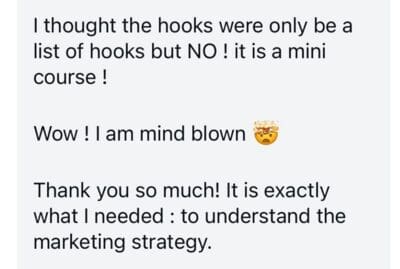
It’s why I built the 50 Hooks Bootcamp. In it, I give you 50+ proven hooks all ready to go, so all you have to do is plug and play! I also teach you the psychology behind them PLUS a ChatGPT workshop so you can create unlimited strategic hooks to help you grow your audience and sign clients on Instagram.
Ready to learn the strategy behind viral hooks on Instagram?
Enroll in 50 Hooks Bootcamp.

Most popular Posts:

How to Win Over the Instagram Algorithm in 2026

3 Types of Instagram Posts You Need to Sign More Clients


